


Anytime Digital Banking Discover Valley Strong's
BENEFITS OF
ONLINE BANKING
Check your account balance, view transaction history, pay bills, or research loan payments all from your computer or phone with online banking.

Open A New Account
Easily add new accounts through our convenient Online Banking portal.

Apply For Loan And/Or Credit Card
Quickly access loans and credit cards with our simple online application.

Make Transfers
Effortlessly transfer funds—no fees, no hassle, directly from your account.

View Images And Print Copies Of Paid Checks
Access and print images of your deposited checks with ease.

Download Account History
Instantly view and download your full transaction history, all in one place.

Order Checks
Easily reorder checks by logging into Online Banking.

Place Stop Payment on Checks
Stopping a check payment has never been easier—manage it online.
Receive Email Alerts
Stay informed with real-time email alerts to monitor your account activity.
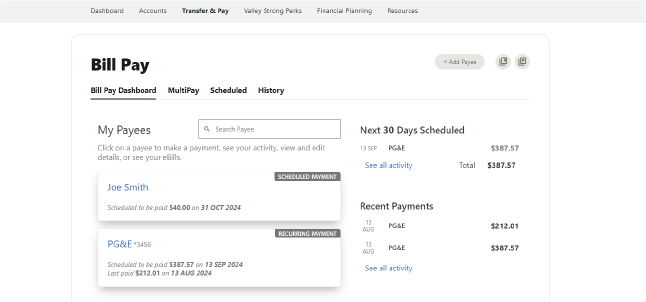
Bill Pay
Set up one-time or recurring payments to ensure your bills are paid on time every month.
Additional features include:
Payment Center: View balances, pending payments, and alerts.
Quick Pay: Send safe and secure payments to merchants.
Payee List: Access thousands of pre-established merchants to save time.
eBills: Receive your bills electronically, securely, and on time.
To enroll:
1. Click the Bill Pay icon.
2. Agree to Terms and Conditions.
3. Start adding Payees.
eStatements
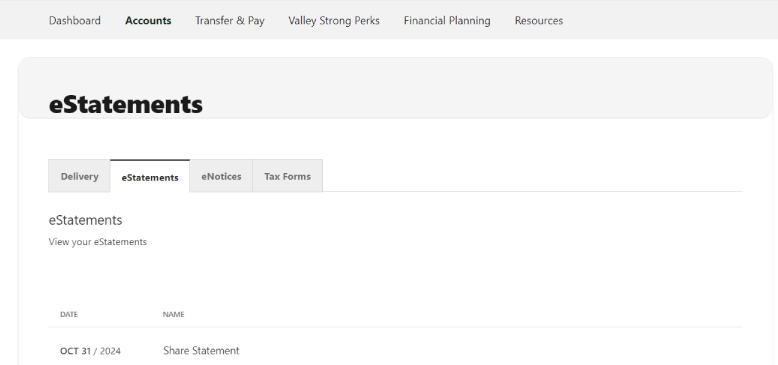
Sign up for eStatements. Just follow these five steps:
- Log in to online banking.
- Select the “More” link from the menu items on the left hand side, then click “eStatements.”
- Click “Statements,” then “View Statements.”
- Accept Terms and Conditions.
Credit Score
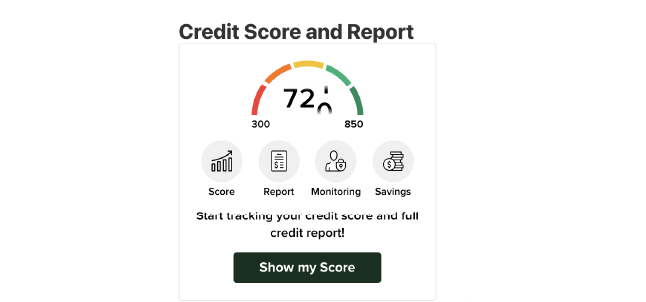
Log in to online banking or the mobile banking app to track your credit score, monitor your credit report, and get the best loan rates from Valley Strong!
- When using our mobile banking app, click the hamburger menu button located at the bottom right, then click the "Credit Score and Report" widget.
- When using online banking, click the "More" button and a menu will appear revealing the "Credit Score and Report" widget.
Discover the convenience of our
MOBILE APP
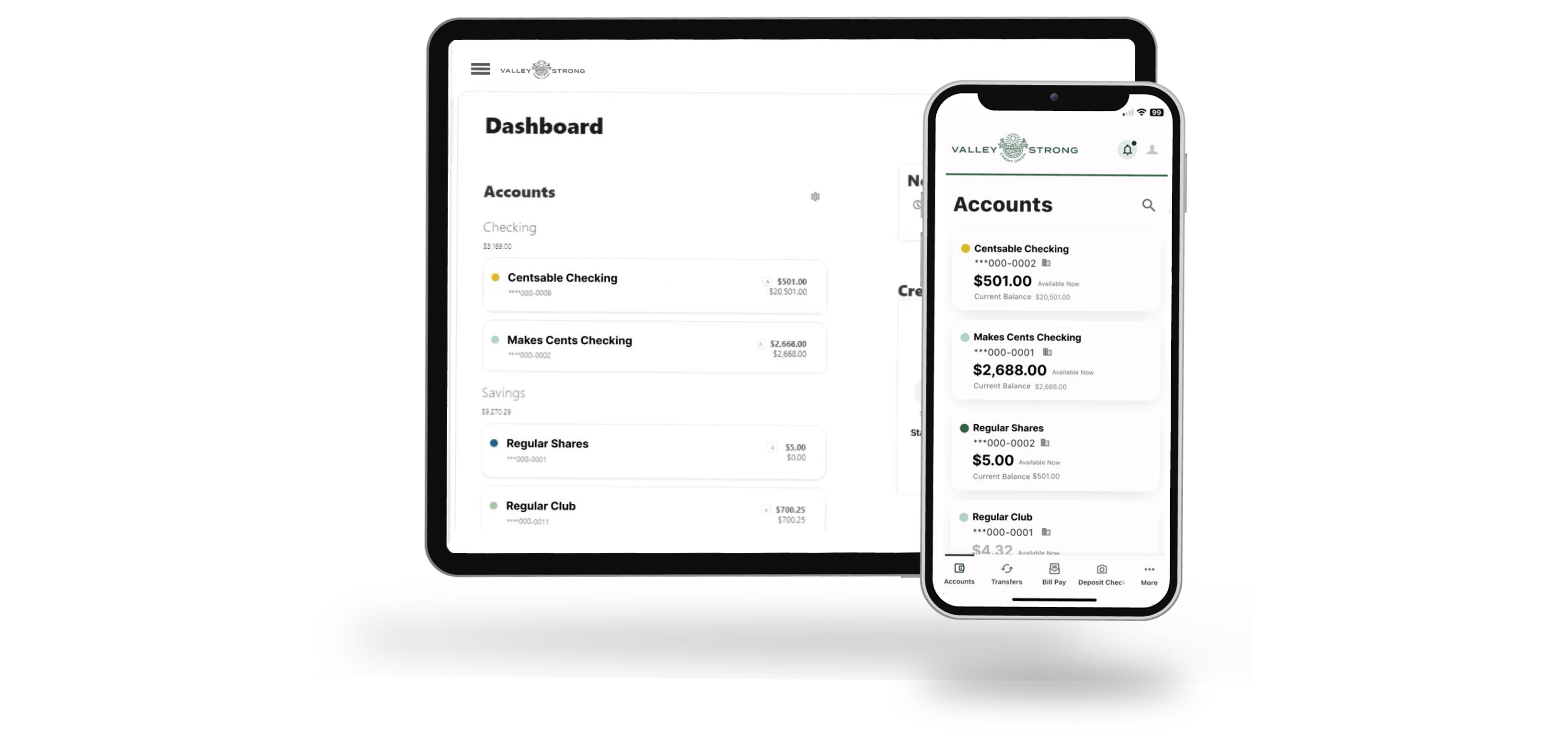
Experience effortless account access and financial management anytime, anywhere.
Open A New Account
Easily add new accounts through our convenient Online Banking portal.
View Your Account Balance
View monthly account statements anytime, anywhere to monitor finances.

Apply For A Loan
Use secure, easy methods for prompt loan payments to boost financial management.
Review Transaction History
Instantly view and review your full transaction history, all in one place.
Download our App


Card Management
Whether you're shopping online, traveling, or simply keeping track of everyday spending, Card Management gives you the tools to manage your debit or credit card exactly the way you want.
- Get notified for low balances or unusual activity
- Temporarily pause your card or block specific merchants
- Quickly activate a new card without calling
- Enjoy worry-free spending when you're away
Explore Card Management tools in Online Banking or the Mobile App.

Send & Receive Money with Zelle®
Zelle is a fast, safe and easy way to send money in minutes1 to friends, family and others you trust2, using only their U.S. mobile number or email address. Use Zelle in the Valley Strong Mobile Banking app to send money directly from your bank account to theirs. With Zelle, you can also receive money directly into your bank account within minutes1.
1Transactions typically occur in minutes when the recipient’s email address or U.S. mobile number is already enrolled with Zelle. 2Must have a bank account in the U.S. to use Zelle. Zelle and the Zelle related marks are wholly owned by Early Warning Services, LLC and are used herein under license. Personal Accounts only, Business accounts do not qualify.


Mobile Deposit
Our Mobile Banking app makes depositing checks easy through Remote Deposit — just open our app, click "Deposit Check" and snap a picture of the check.
- Deposit checks made payable to you which are drawn on any financial institution located in the United States.
- Simply endorse the check and, pending approval, funds will be deposited to your account(s).
Questions? Contact us on Live Chat, call our Contact Center at (661) 833-7900/(800) 221-3311, or visit any of our conveniently located branches.

FAQs
Frequently asked questions about our Online Banking and Mobile Banking app.
-
How To Transfer Money:
Hover over the Transfer & Pay tab at the top of online banking and select Transfers from the drop-down menu. Choose the account you would like to transfer from, then select a predefined amount or enter a custom amount. Next, select the account you would like to transfer to and finally, click Submit Transfer.
For more detailed transfers you may select the Classic tab where you may specify the parameters above, the date of the transfer, if it is a recurring transfer, and the frequency of the recurring transfer. See below for more details.
-
How To Set Up A Cross Member Transfer:
To transfer to another Valley Strong Member, select Add an account to make a transfer. From there, navigate to Internal Account and select Send money to another Valley Strong Member. Enter the specified information and save. This account will now appear as an option to transfer to.
-
How To Set Up An External Transfer:
To transfer to an account outside of Valley Strong, select Add an account to make a transfer. Under the External Account options, choose to either add an account instantly or manually. If your institution supports an instant connection, you may use your online banking credentials for that institution to establish the external account. If this option is unavailable, then you may add the account manually via routing and account number. Two trial deposits will be sent to the other account. You will need to verify these amounts by going to your Settings and clicking on Accounts. Locate the account and enter the amount of each trial deposit. Once this is complete, the account should be available to make transactions with.
-
How To Check Account Balance:
You may check your account balances from the Online Banking Dashboard or by clicking Accounts and selecting the specific account you would like to view. Important Note: The “A” symbol signifies your available balance, which includes all pending card transactions that may have yet to post. Please refer to this balance when checking if you have funds available to make a transaction.
-
How To Reset Your Password:
From the login screen click Forgot Password. You will be prompted to enter your username and social security number. On the next screen you will have the option of where to send a temporary code based on the methods of communication we have on file for you. Once you receive the code, enter it into the provided field and continue to the next page where you will be prompted to create a new password.
-
How To Set Up Online Bill Pay:
To use Bill Pay you must have a checking account. Hover over Transfer & Pay at the top and select Bill Pay. From the Bill Pay dashboard you may add payees, schedule payments and view payment history. When you schedule a payment, you will be presented with a Deliver By date. This is the date when the payment will be delivered to the payee. If the date you wish to schedule the payment for is not available, we recommend scheduling a payment via other means to ensure your payment expectations are met.
-
How To Activate A Card In A Mobile Wallet:
Login to the Mobile App, and you will see a "Cards" tab to manage your cards. Select the card you wish to add to your mobile wallet. Tap “Add to Apple Pay" for iPhone users or “Add to Google Wallet” for android users.
STILL HAVE
QUESTIONS?